
Accessing your account is quick and straightforward — and once you’re in, everything GameZone has to offer is just a tap away. Whether you’re logging in to jump into a round of Tongits, check your rewards, or join a free tournament, this guide walks you through everything you need to know about the GameZone Login process from start to finish.
Before You Log In
Before you proceed with the GameZone Login process, make sure you have the following ready:
- A registered GameZone account — You must have an existing account to log in. If you haven’t registered yet, head over to our registration page and create your account in just a few steps.
- Your registered mobile number — This is the mobile number you used when you created your account. You will need it to log in via OTP or password.
- Your password — If you registered using the password method, make sure you have it on hand. If you’ve forgotten it, refer to Section 4 of this guide on how to reset it.
- A device with internet connection — GameZone is accessible via desktop browser or through the dedicated mobile app on Android and iOS.
Having all of these ready before you start will make the login process smooth and hassle-free.
GameZone Login: Step-by-Step Guide
The GameZone Login process is simple and takes only a few seconds. Follow the steps below based on your preferred login method.
Via One-Time Pin (OTP)
Step 1: Visit the Platform
Go to the official GameZone website your browser or open the GameZone app on your Android or iOS device.
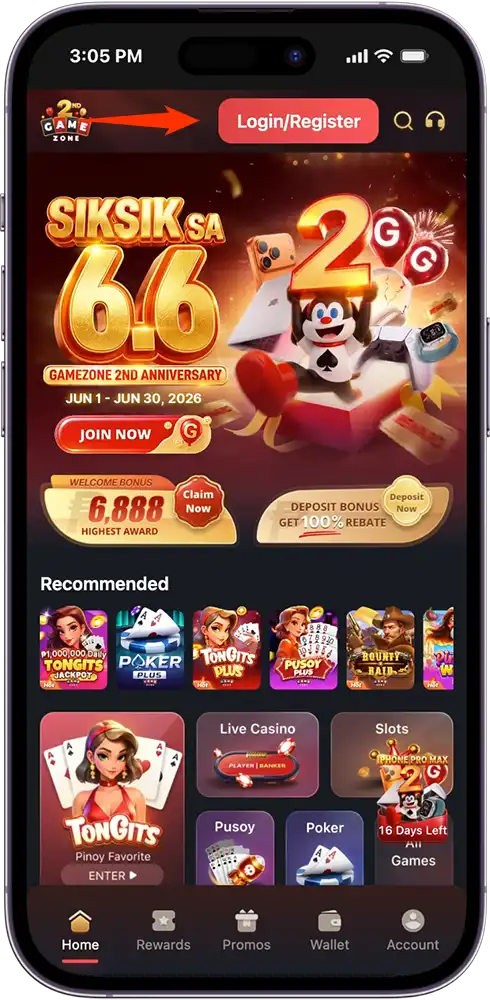
Step 2: Click the Login/Register Button
On the homepage, tap the “Login/Register” button located at the top right corner of the screen.
Step 3: Select One-Time Pin
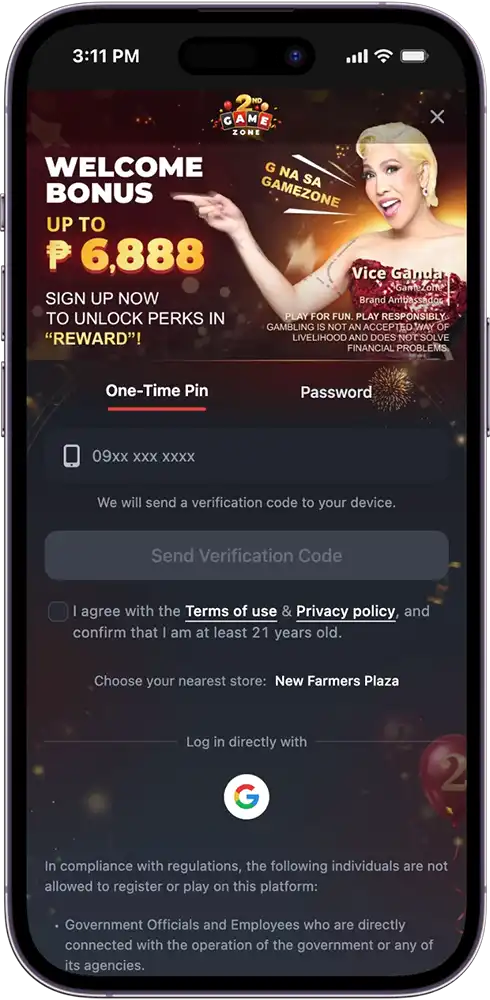
On the login screen, select the “One-Time Pin” tab.
Step 4: Enter Your Registered Mobile Number
Key in the mobile number associated with your GameZone account and tap “Send Verification Code”.
Step 5: Enter the OTP
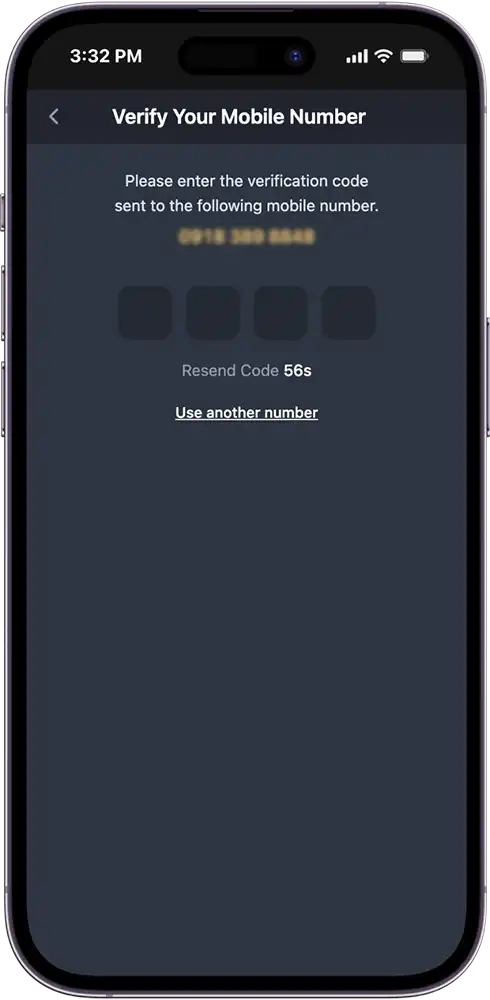
A one-time PIN will be sent to your registered mobile number. Enter the code in the provided field to proceed.
Step 6: Access Your Account
Once the OTP is verified, your GZone Login is complete and you now have full access to the platform.
Via Password
Step 1: Visit the Platform
Go to the official GameZone website your browser or open the GameZone app on your Android or iOS device.
Step 2: Click the Login/Register Button
On the homepage, tap the “Login/Register” button located at the top right corner of the screen.
Step 3: Select Password
On the login screen, select the “Password” tab.
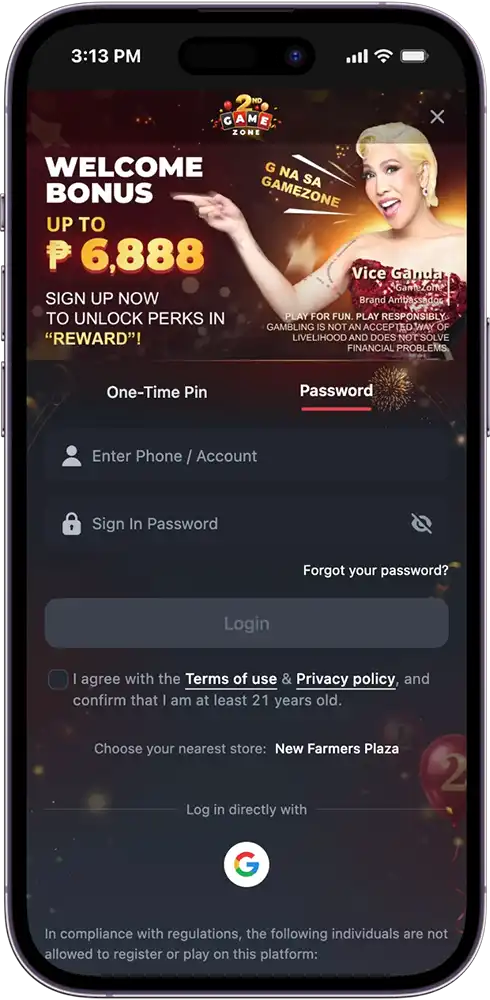
Step 4: Enter Your Credentials
Key in your registered mobile number or account name and your sign-in password in the provided fields.
Step 5: Tap Login
Once your credentials are entered, tap the “Login” button to proceed.
Step 6: Access Your Account
Your GameZone Login is complete — welcome back to the platform.
How to Reset Your Password
Forgot your password? No worries — resetting it is quick and easy. Follow the steps below to regain access to your GameZone Login account:
Step 1: Go to the Login Screen
Visit the official GameZone website or open the GameZone app and tap the “Login/Register” button.
Step 2: Select the Password Tab
On the login screen, select the “Password” tab.
Step 3: Tap “Forgot Password”
Below the password field, tap the “Forgot Password” option.
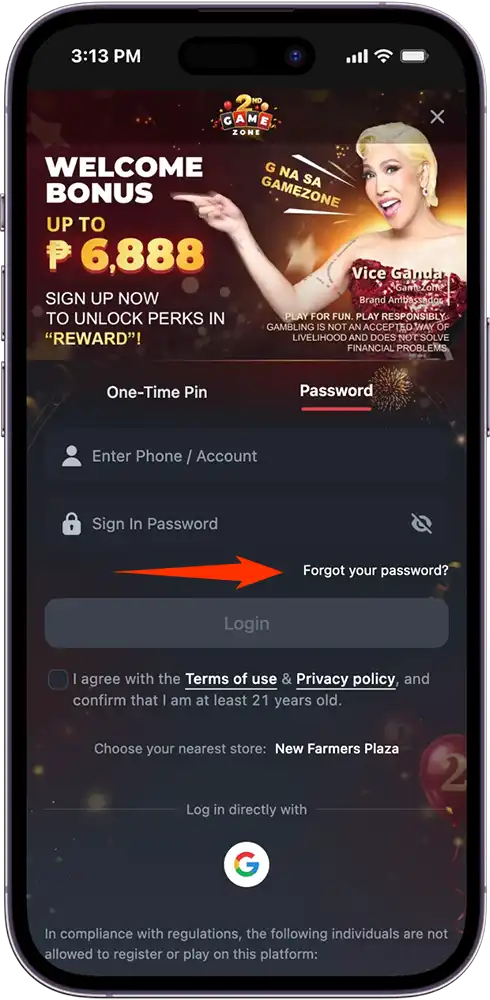
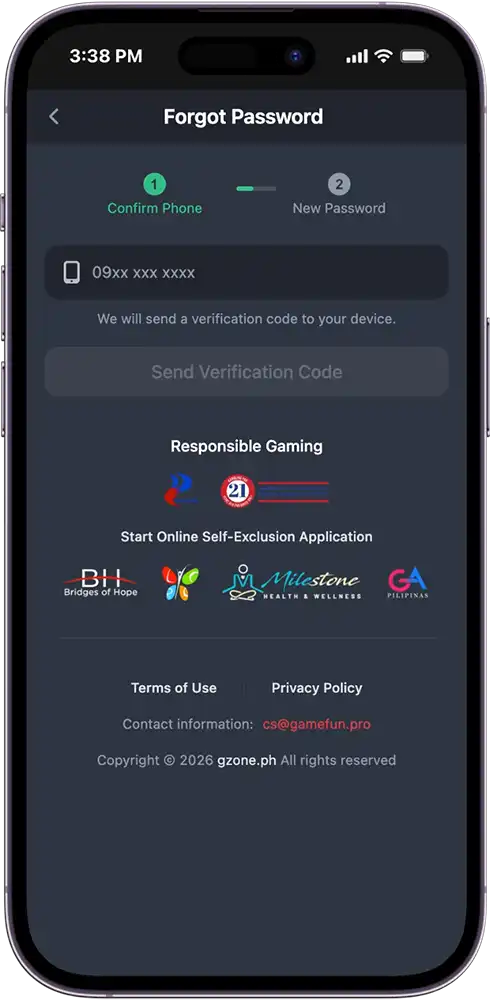
Step 4: Enter Your Registered Mobile Number
Key in the mobile number associated with your GameZone account. A verification code will be sent to your device.
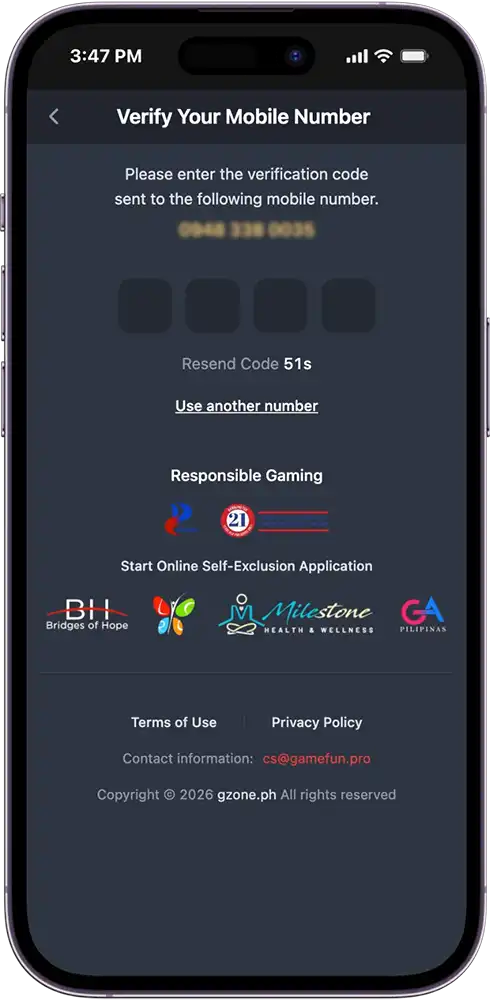
Step 5: Enter the Verification Code
Enter the OTP sent to your registered mobile number to verify your identity.
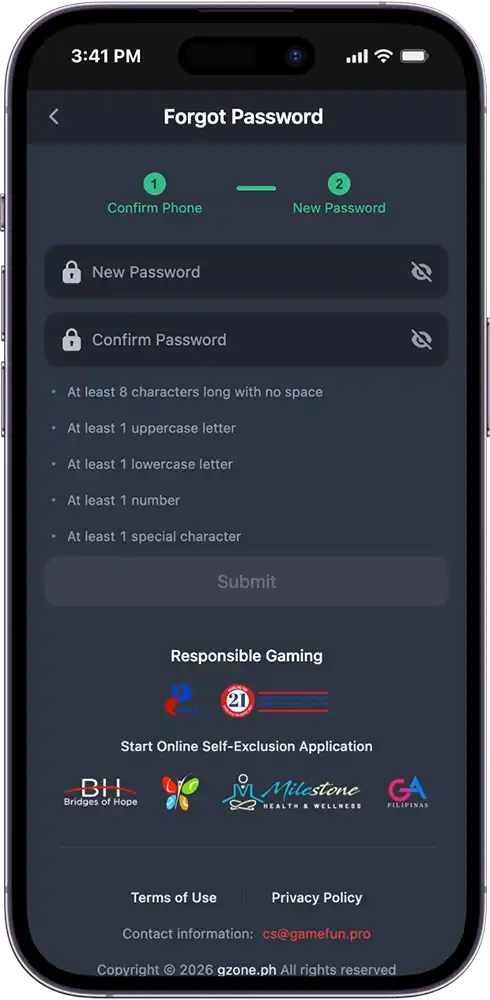
Step 6: Create a New Password
Once verified, you will be prompted to create a new password. Make sure it is strong, unique, and not easily guessed.
Step 7: Log In with Your New Password
Use your newly created password to complete your GZone Login and regain full access to the platform.
Keeping Your GameZone Account Secure
Your account security is just as important to us as it is to you. Here are some simple but effective practices to keep your GameZone Login credentials and account safe at all times:
- Use a strong, unique password — Avoid using easily guessable passwords like birthdays, names, or simple number sequences. A strong password combines letters, numbers, and special characters.
- Never share your credentials — Your login details are for your use only. Never share your mobile number, password, or OTP with anyone — including individuals claiming to be GameZone staff.
- Log out after every session — Especially when using a shared or public device, always log out of your account after each session to prevent unauthorized access.
- Keep your registered mobile number active — Your mobile number is tied to your account verification and OTP delivery. Make sure it remains active and accessible at all times.
- Report suspicious activity immediately — If you notice any unusual activity on your account or believe your credentials have been compromised, contact our 24/7 customer support team right away via phone, live chat, or email.
Your security is our priority — and taking these simple steps goes a long way in keeping your GZone Login and account fully protected.
Common GameZone Login Issues and How to Fix Them
Running into a problem with your GameZone Login? Here are the most common issues players encounter and how to resolve them quickly:
I didn’t receive my OTP
Make sure your registered mobile number is entered correctly and that you have a stable internet or mobile data connection. If the OTP still doesn’t arrive, tap “Resend Code” and wait a few seconds. If the issue persists, contact our 24/7 customer support team for assistance.
I entered the wrong password
Double-check that your caps lock is off and that you are entering the correct password associated with your account. If you have forgotten your password, refer to Section 4 of this guide for instructions on how to reset it.
My account appears to be locked or suspended
If you are unable to access your account due to a suspension or lock, contact our customer support team immediately via phone, live chat, or email for assistance.
I no longer have access to my registered mobile number
If you have changed your mobile number and can no longer receive OTPs, contact our customer support team to update your account details and regain access.
The platform is not loading properly
Try clearing your browser cache or restarting the app. Make sure your device has a stable internet connection. If the issue continues, contact our support team — available 24/7.
Ready to Get Back in the Game? Log In to GameZone Now!
Your next great gaming session is just a few taps away. Whether you’re returning for a competitive round of Tongits, checking your latest rewards, or jumping into a free tournament — the GameZone Login process is fast, simple, and always within reach.
If you ever run into any issues accessing your account, our 24/7 customer support team is always ready to help via phone, live chat, or email. And if you haven’t created an account yet, GZone Login starts with a quick and free registration — head over to our registration page and get started today.
Frequently Asked Questions (FAQs)
What is the GameZone Login process?
Logging in to GameZone is simple. Visit the official GameZone website or open the app, tap the “Login/Register” button, and choose either the One-Time Pin or Password method to access your account.
Can I log in to GameZone without a password?
Yes. You can log in using the One-Time Pin (OTP) method — simply enter your registered mobile number, receive a verification code, and enter it to access your account without needing a password.
What should I do if I forgot my GameZone Login password?
Tap the “Forgot Password” option on the login screen and follow the steps to reset your password via your registered mobile number. Refer to Section 4 of this guide for the full walkthrough.
Can I log in to GameZone on multiple devices?
Yes. You can access your GZone Login account from multiple devices — desktop or mobile — as long as you use your registered credentials.
Is my GameZone Login information secure?
Yes. GameZone uses encryption and secure protocols to protect your login credentials and account information at all times. We also recommend following the security tips outlined in Section 5 of this guide for added protection.