For most Filipinos, GCash is already part of daily life — used for bills, groceries, transfers, and just about everything in between. So it only makes sense that it is also one of the fastest and most familiar ways to fund your gaming account. A GameZone GCash deposit takes just a few taps, a quick QR scan, and your balance is loaded and ready to play — usually within minutes.
This guide walks you through the entire process from start to finish, including exactly what happens inside the GCash app after you confirm your transaction on the platform.
Why GCash Is the Easiest Way to Deposit on GameZone?
If you already have GCash on your phone — and chances are you do — then you have everything you need to fund your account instantly. Here is why GCash remains the go-to choice for a GameZone GCash deposit.
It Is Already on Your Phone
GCash is one of the most widely used digital wallets in the Philippines, with millions of active users across the country. For most players, there is no setup required — your GCash account is already active, already funded, and already familiar. That makes it the path of least resistance when you want to get into the game quickly.
The Process Is Fast
From the moment you confirm your GZone GCash deposit to the moment your balance reflects, the entire process typically wraps up within 5 minutes — no bank waiting times, no manual transfers, no complicated verification steps.
It Is Secure
GCash is a Bangko Sentral ng Pilipinas (BSP)-regulated payment platform, meaning every transaction operates under strict financial security standards. Combined with GZone’s PAGCOR-licensed environment, your money moves through two layers of regulated, trusted infrastructure.
The QR Flow Is Simple
Unlike some payment methods that require manually entering account numbers or reference codes, a GameZone GCash deposit uses a QR code scan — one of the most straightforward payment flows available. Open your GCash app, scan, confirm, done.
What You Need Before Your GameZone GCash Deposit
Before you start, make sure these are in order — they are small things, but skipping any one of them is enough to cause a failed or delayed transaction.
A Registered and Active Account
You need an active account on the platform before you can make a GameZone GCash deposit. Registration only requires a valid Philippine mobile number and takes just a few minutes.
An Active GCash Account With Sufficient Balance
Your GCash wallet needs to have enough funds to cover the amount you plan to deposit. The minimum deposit on GZone is ₱20, so even a lightly loaded wallet can get you started. Just make sure your GCash account is active and not restricted or suspended before attempting a transaction.
Matching Account Names
This is the detail most players overlook. The name on your account must match the name on your GCash account exactly. A mismatch — even something as minor as a missing middle name or an abbreviated first name — can cause your GZone GCash deposit to fail or get flagged. Verify this before your very first cash in.
A Stable Internet Connection
The deposit flow involves a redirect to the GCash payment page and a QR code scan inside the app. Losing connection mid-process — especially during the QR scan or payment confirmation step — can cause the transaction to stall. A stable mobile data or Wi-Fi connection ensures everything goes through cleanly.
GameZone GCash Deposit Guide: Step-by-Step
Here is the complete walkthrough from opening your Wallet to seeing your balance updated.
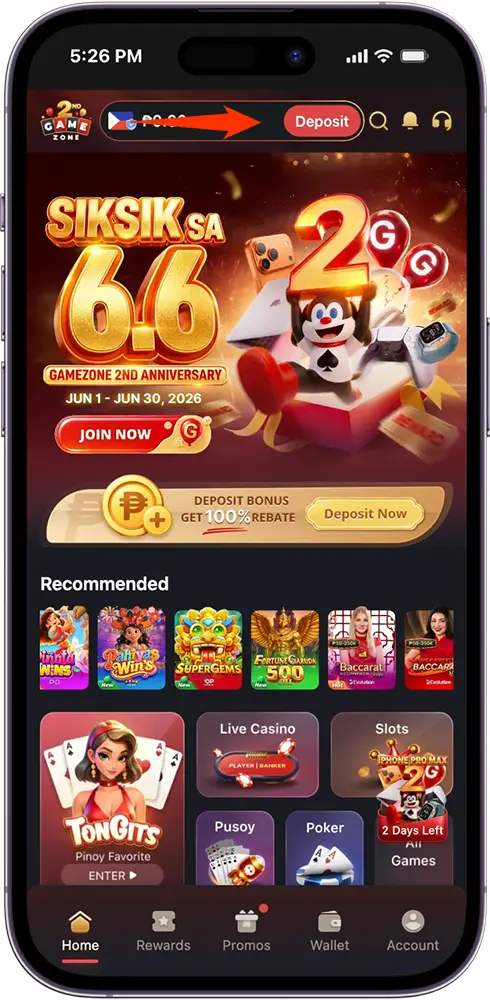
Step 1: Go to Your Wallet
Login to your account and tap the Wallet icon at the bottom navigation bar. This opens the Wallet section. Make sure you are on the Deposit tab.
Step 2: Select GCash as Your Payment Method
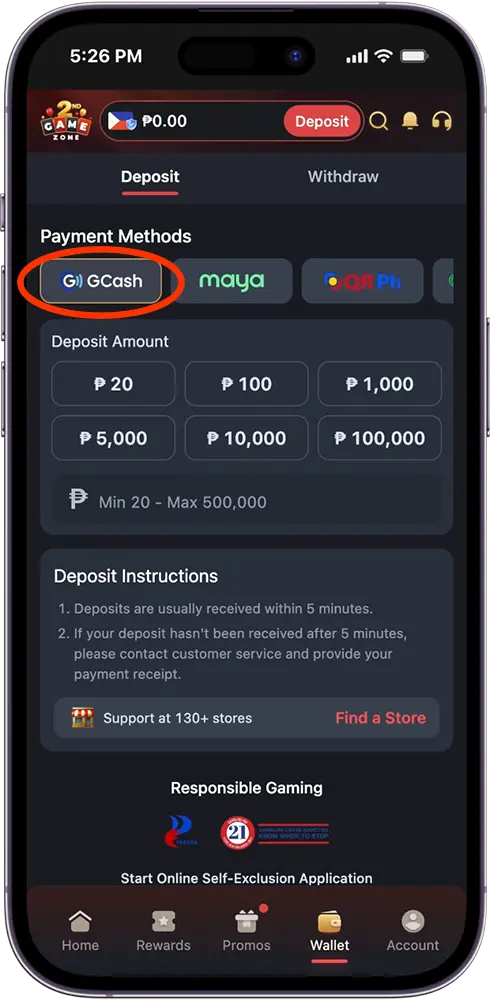
You will see a scrollable row of payment method options at the top of the deposit screen. Tap GCash to select it.
Step 3: Enter Your Deposit Amount
Choose from the preset amounts — ₱20, ₱100, ₱1,000, ₱5,000, ₱10,000, or ₱100,000 — or type in a custom amount anywhere between ₱20 and ₱500,000.
Step 4: Review and Submit
Tick the checkbox confirming that you agree to the Terms of Use and Privacy Policy, and that you are at least 21 years old. Then tap Submit.
Step 5: Confirm Your Transaction
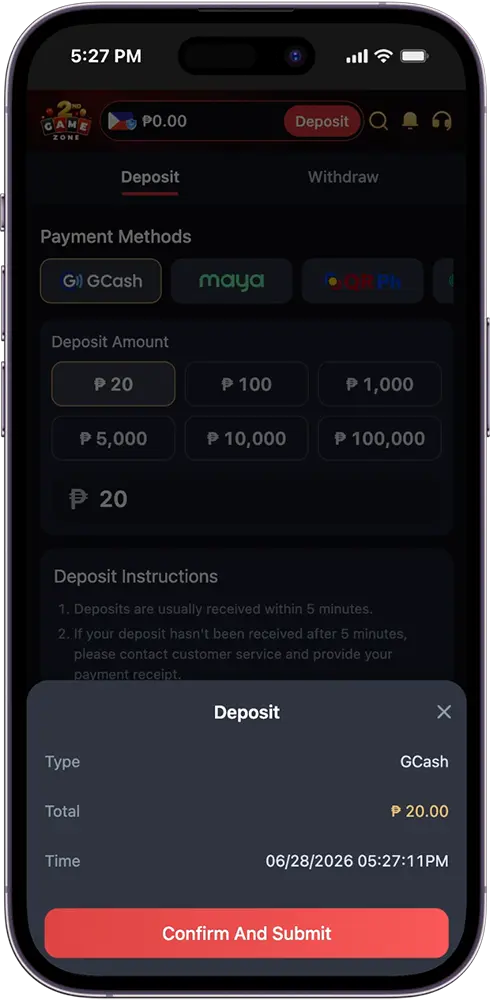
A confirmation modal will appear showing the transaction Type (GCash), Total amount, and Time. Review the details carefully, then tap Confirm and Submit.
Step 6: Scan the GCash QR Code
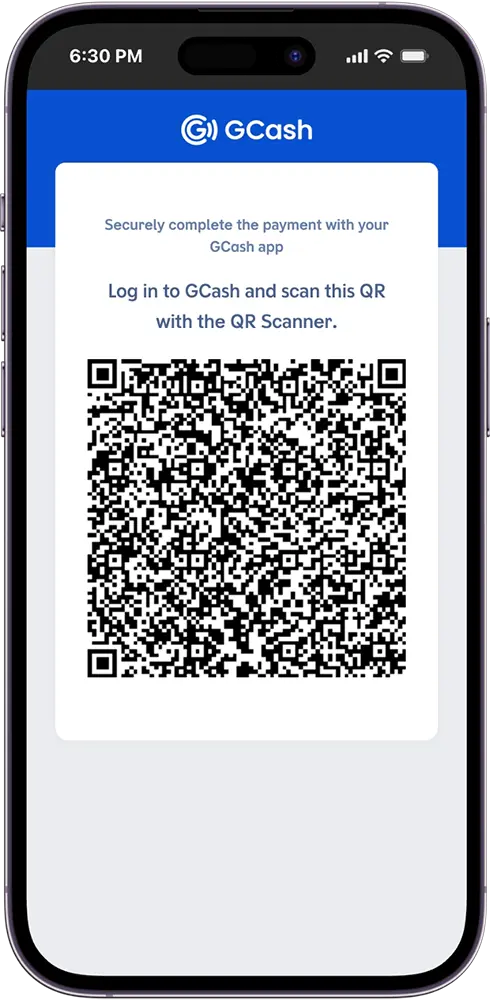
You will be redirected to the GCash payment page, which displays a QR code with the prompt: “Log in to GCash and scan this QR with the QR Scanner.”. Open your GCash app, navigate to the QR Scanner, and scan the code on your screen.
Step 7: Confirm the Payment Inside GCash
After scanning, the GCash app will display the payment details for your review. Confirm the payment inside the app to complete the transaction.
Step 8: Wait for Your Balance to Update
Once the payment is confirmed on the GCash side, your balance will reflect the deposited amount — usually within 5 minutes. Your GameZone GCash deposit is complete and you are ready to play.
GCash Deposit Limits on GameZone
Understanding the deposit limits on both the platform and GCash side helps you plan your GameZone GCash deposit without running into unexpected restrictions.
| Limit | Amount |
| Minimum Deposit | ₱20 |
| Maximum Deposit | ₱500,000 |
These are the platform-wide limits that apply to every GameZone deposit transaction. Your deposit must fall within this range regardless of which payment method you use.
On the GCash side, wallet and transaction limits depend on your account verification level. A fully verified GCash account carries higher transaction limits compared to a basic or partially verified one. If you are planning to make a larger GZone GCash deposit, make sure your GCash account is fully verified to avoid hitting a wallet ceiling on their end.
It is also worth noting that your available GCash balance must be sufficient to cover the full deposit amount — GCash does not allow partial payments. If your wallet limit is lower than what you want to deposit, you can either upgrade your GCash verification level or switch to an alternative method on the platform such as Maya, GrabPay, QR Ph, MannyPay, or Coins.ph.
How Long Does a GameZone GCash Deposit Take?
In most cases, a GameZone GCash deposit reflects in your account within 5 minutes of completing the payment confirmation inside the GCash app. That said, a few situations can cause a delay:
That said, there are a few situations that can cause a delay:
The QR Code Was Not Scanned in Time
The GCash QR code on the payment page has an expiry window. If you took too long to open your GCash app and scan the code, the session may have timed out — meaning the transaction did not push through even if it felt like it did. Simply restart the deposit process from your Wallet and scan the QR code promptly this time.
Connection Was Lost Mid-Transaction
If your internet dropped during the QR scan or payment confirmation step inside GCash, the transaction may be incomplete. Check your GCash transaction history to see whether the payment was actually deducted before attempting again.
High Traffic on the GCash Network
During peak hours or high-traffic periods, GCash processing times can occasionally slow down. This is on the payment provider’s end and is usually resolved within a few minutes.
What to Do If Your Deposit Has Not Reflected After 5 Minutes
- Check your GCash transaction history to confirm whether the payment was deducted.
- Screenshot or note your GCash transaction reference number.
- Contact our 24/7 customer support team via phone, live chat, or email and provide your reference number for faster resolution.

Common GCash Deposit Issues and How to Fix Them
Even with a smooth process, a few hiccups can occasionally come up. Here is a rundown of the most common issues players encounter — and exactly what to do about each one.
QR Code Expired Before Scanning
The GCash payment page QR code has a limited validity window. If you did not scan it in time, the session expires and the transaction does not go through. Go back to your Wallet, start a new deposit, and make sure your GCash app is already open and ready before you tap Confirm and Submit on the platform.
GCash Balance Was Insufficient
If your GCash wallet did not have enough funds to cover the deposit amount, the payment will not go through. Top up your GCash balance first, then restart your GameZone GCash deposit.
Name Mismatch Between Accounts
If the name on your account does not match the name on your GCash account, your transaction may get flagged or rejected. Contact our 24/7 customer support team to resolve any account name discrepancies before attempting another deposit.
OTP or Confirmation Not Completed Inside GCash
After scanning the QR code, the GCash app requires you to confirm the payment. If you closed the app or navigated away before completing that step, the transaction was not completed. Always follow through until you see a successful payment confirmation screen inside GCash.
Deposit Deducted From GCash But Not Reflected in Your Account
If your GCash balance was deducted but your account has not been updated after 5 minutes, do not attempt another GameZone GCash deposit. Instead, screenshot your GCash transaction history showing the deduction, then contact our customer support team with that receipt. Our team will verify the transaction and credit your account accordingly.
GCash App Crashed or Lost Connection Mid-Transaction
If your app crashed or your connection dropped during the payment flow, check your GCash transaction history first to determine whether the payment was actually processed. If it was not deducted, simply restart the deposit. If it was deducted but not reflected, follow the steps above and reach out to support.